How to add GPS location to Sony a6300 photos
The Sony a6300 is a 2016 APS-C mirrorless camera — and like almost every Sony body at this level, it has no built-in GPS receiver. So the RAW and JPEG files it produces come with the date and camera settings baked in, but no location. Open them in Apple Photos, Lightroom, or Google Photos and they simply won't appear on the map.
The a6300 has Wi-Fi and NFC but no Bluetooth, so it predates Sony's phone location link — there's no way to pull GPS from your phone at capture time, which makes adding location afterwards the only practical route.
The good news: the location isn't lost forever. Here's exactly how to add GPS coordinates to your photos — including the fastest way to fix the ones you've already taken.
Easily add GPS location to photos on iOS
Here's the shortcut most people miss. You almost certainly also take photos on your iPhone — and those are geotagged automatically, with the exact spot they were taken. When you import your Sony a6300 shots into the same Photos library, they line up on the same timeline as your phone photos.
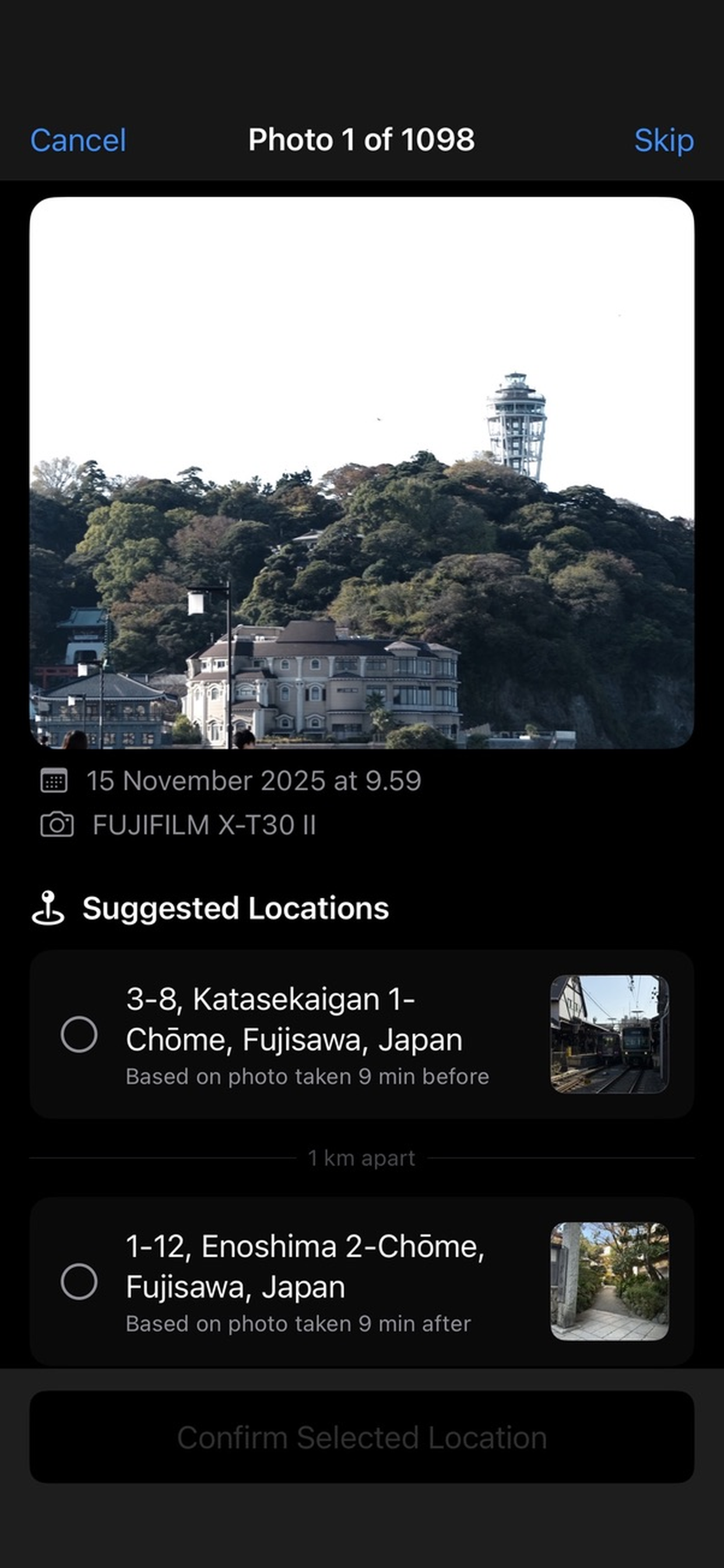
Photo Location Wizard uses your phone's photos to fill in the blanks. For each Sony a6300 photo that has no location, it looks at the geotagged iPhone photos taken just before and after it, works out where you were, and copies that location across to the camera shot. You just tap to confirm.
No cables, no map lookups, no typing in coordinates — and it works on the photos already sitting in your library.
Download on the App StoreRuns entirely on your iPhone · iOS 16 and later
Does the Sony a6300 have GPS?
No — the Sony a6300 has no internal GPS. There's no chip in the body that records where you are when you shoot.
It also can't pull location from your phone — the Sony a6300 predates Sony's Bluetooth location-sync feature. That means there's no in-camera route to geotag your shots at all, and adding location afterwards isn't just the easiest option, it's the only practical one.
Step by step: geotag Sony a6300 photos with Photo Location Wizard
-
Import your photos to your iPhone
Copy the shots off your camera's SD card into the Photos app — via a card reader, USB-C, AirDrop from a Mac, or your camera's companion app. They'll land in your library with their capture date but no location.
-
Open Photo Location Wizard and let it scan
The app scans your library and finds every photo that's missing GPS coordinates, so you're not hunting through thousands of images by hand.
-
Review the suggested location
For each photo, the app looks at the geotagged photos taken just before and after it — usually snaps from your phone on the same day — and suggests where it was most likely taken.
-
Confirm in a tap
If the suggestion looks right, tap to accept and the coordinates are written straight into the photo. Use batch mode to tag a whole set from the same place at once, or set a fixed location like Home.
Put your Sony a6300 photos back on the map
Free your library from blank locations. Photo Location Wizard runs entirely on your iPhone — no uploads, no account.
Download on the App StoreiOS 16 and later
Frequently asked questions
Can I add GPS location to photos after they've been taken?
Yes. The location metadata (EXIF GPS tags) can be written to a photo at any time — it doesn't have to be captured at the moment you press the shutter. That's exactly what Photo Location Wizard does for your existing Sony a6300 shots: it fills in the coordinates afterwards, based on where you actually were.
Does adding location change or re-compress my Sony a6300 photos?
No. Only the metadata is updated — the image pixels are untouched, so there's no quality loss and no re-compression. Your originals stay exactly as they came out of the camera, just with coordinates attached.
What if I have no geotagged photos from that trip?
The app's automatic suggestions work best when you also took some photos on your phone (which are geotagged) around the same time. If you have none nearby, you can still set the location manually or use a saved fixed location — you're never forced to accept a guess.